
Start generating on Gencraft.com or search “Gencraft” on the App Store!
Upload a “Sketch Guide” and enter a prompt, and watch the two combine into a new image! The “Sketch Guide” feature brings your ideas closer to reality by echoing the original structure of your photo.
This feature works particularly well to specify image composition or particular shapes such as logos that you’d like to appear in your creation.
Note: This feature is not intended for adding reference images of faces. If you would like to incorporate a specific face or person into your generations, we recommend using our Photobooth feature.
To add a sketch guide, click the “Add Your Photo” button right under the text prompt box on the generate page. You will then be prompted to upload your image. After uploading, you’ll select “Sketch Guide” from the feature menu as shown below.

Let’s take a look at four different examples to illustrate what adding a Sketch Guide can do.
Drawings and sketches
First, we’ll explore how this works with drawings. Uploading a drawing or sketch to Gencraft via the sketch guide feature is a great way to realize your creative vision and explore what future iterations of your artwork could look like. It can also be a great way to see your masterpieces in different artistic styles — for example, a colored pencil drawing as a digital art piece — which can serve as further inspiration.
In the example below, we took a pencil sketch of a woman in a fancy coat and heels and added a neon color palette and cityscape background. Notice how the model has preserved all details from the original sketch, from pose to sunglasses.

Logos and shapes
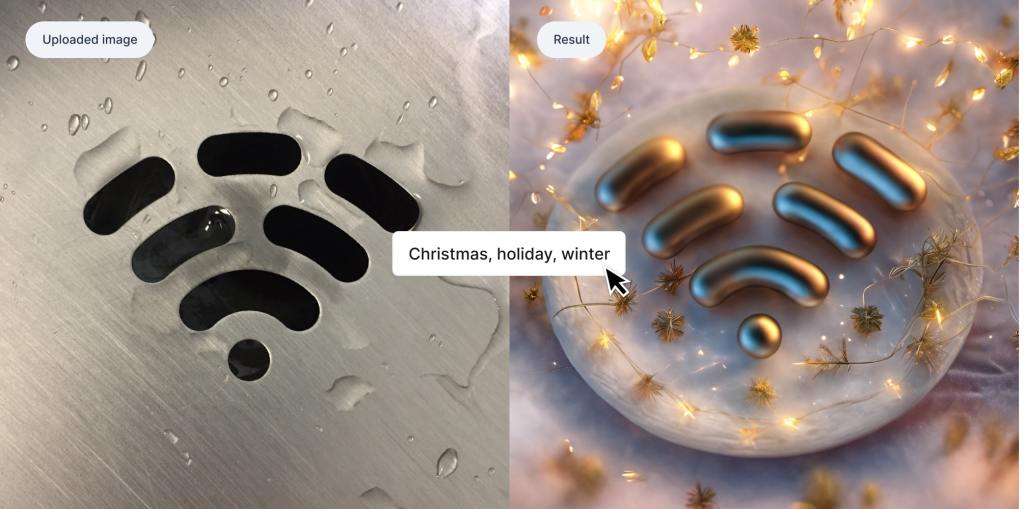
First, we’ll explore how this works with logos and other shapes. This feature is a great option if you have a logo but want to change the style it appears in. Everything from its surroundings to the material it is made out of can change, but the general shape in the sketch guide will remain the basis of your image. Below, we made a simple wifi symbol a little more festive for the holiday season:
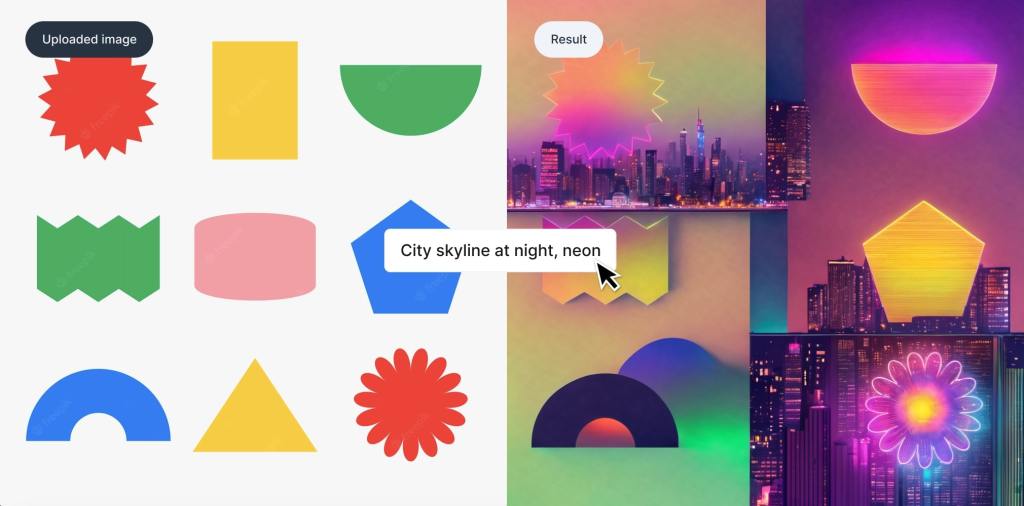
This also works for incorporating various shapes into your result image. Below is an example of this, where a series of artistic shapes are incorporated into an unrelated prompt to create an interesting result.
Posters, banners, and text
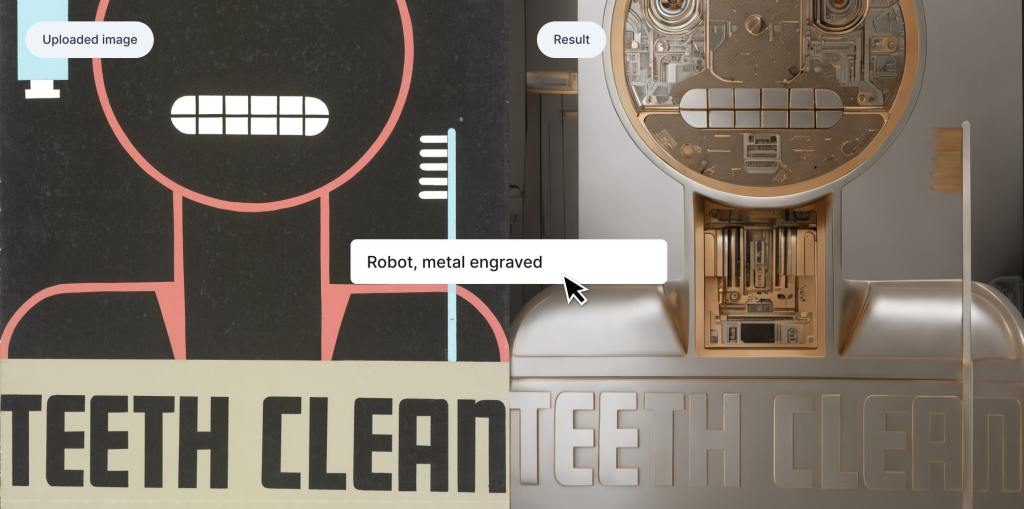
This feature is also useful to transform posters, ads, and other images that mix shapes and logos with text. In the following example, we took a poster about maintaining good oral hygiene and gave it a more futuristic style.
Landscapes
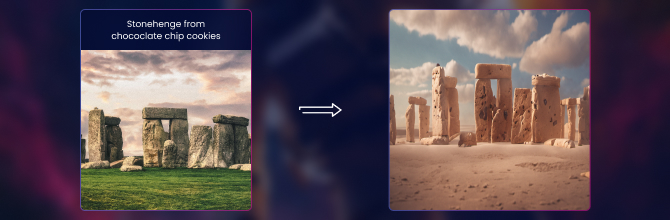
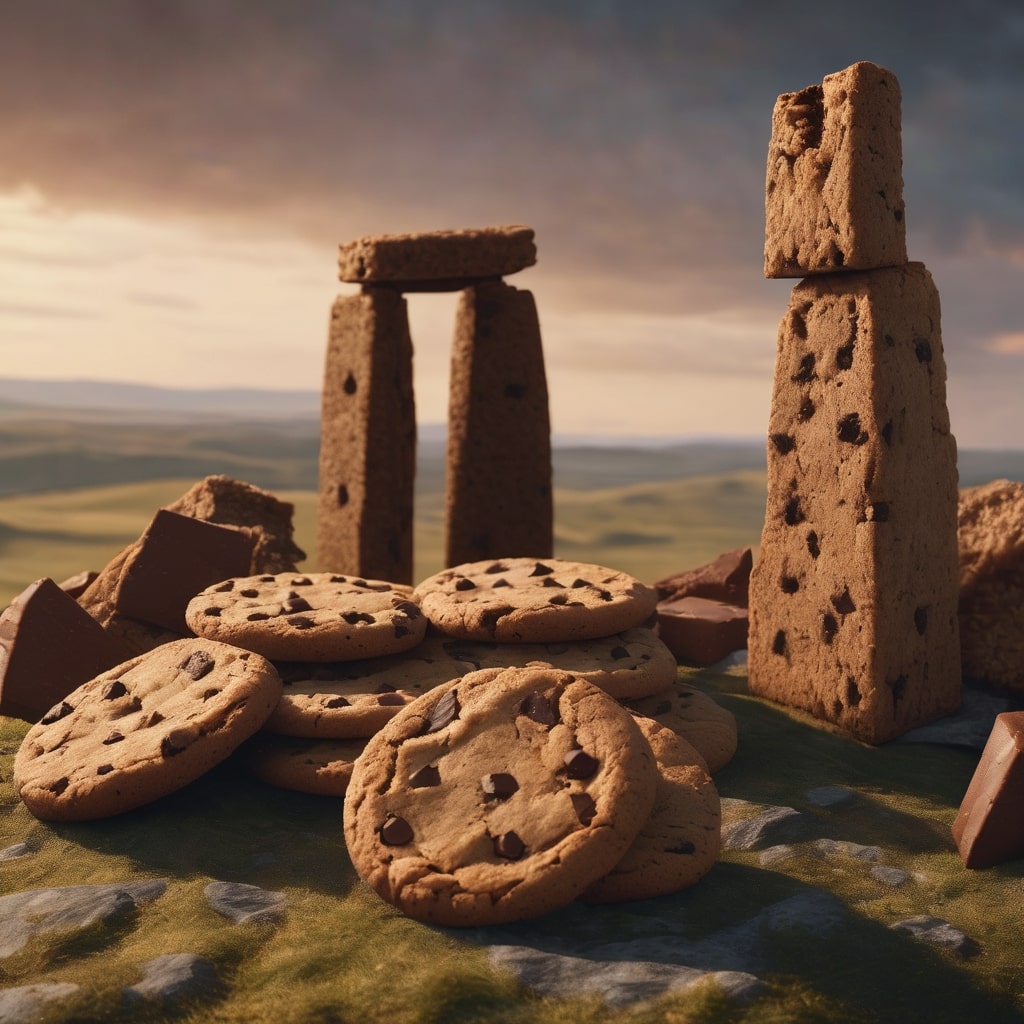
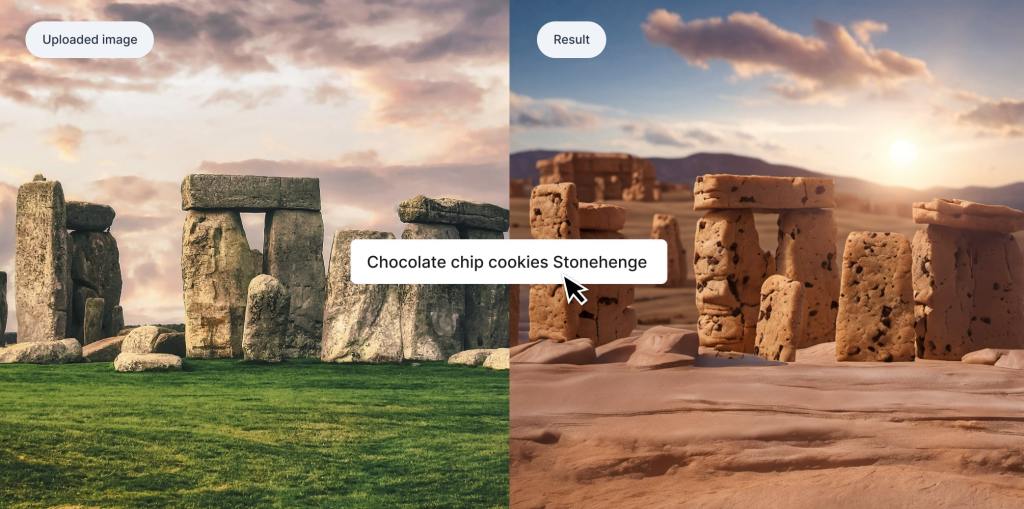
Say you want to create an image of Stonehenge, but with all of the rocks made out of chocolate chip cookies. Using only a prompt and no Sketch Guide, this concept is not fully realized. We have some cookies, and several of them resemble Stonehenge. But some of them are also still in cookie form. Below is the result of the prompt “Stonehenge made out of chocolate chip cookies.”
Adding a Sketch Guide, however, allows us to use a real image of Stonehenge as the basis of our creation. This produces a much better result. Notice that the final image’s composition is nearly identical to the Sketch Guide’s composition.
Using a landscape as a sketch guide also works to specify a certain image composition for images that are completely unrelated to your prompt. In the next example, the uploaded image is of a river running through a very foggy forest. When used with the prompt “Haunted house,” the resulting image has transformed the river into a path and maintains the same areas of the photo that are land and trees versus fog and sky.

These are just several of the ways that a Sketch Guide can unlock new creative possibilities on Gencraft. As you experiment with the platform, you’re bound to find more ways in which this feature can enhance your generations.
Check out our other step-by-step guides, and feel free to contact us at support@gencraft.com if you have any questions we didn’t answer.
Join our Discord to share your art and meet other creators. https://discord.com/invite/gencraft
 Welcome to Gencraft Tutorials