
Start generating on Gencraft.com or search “Gencraft” on the App Store!
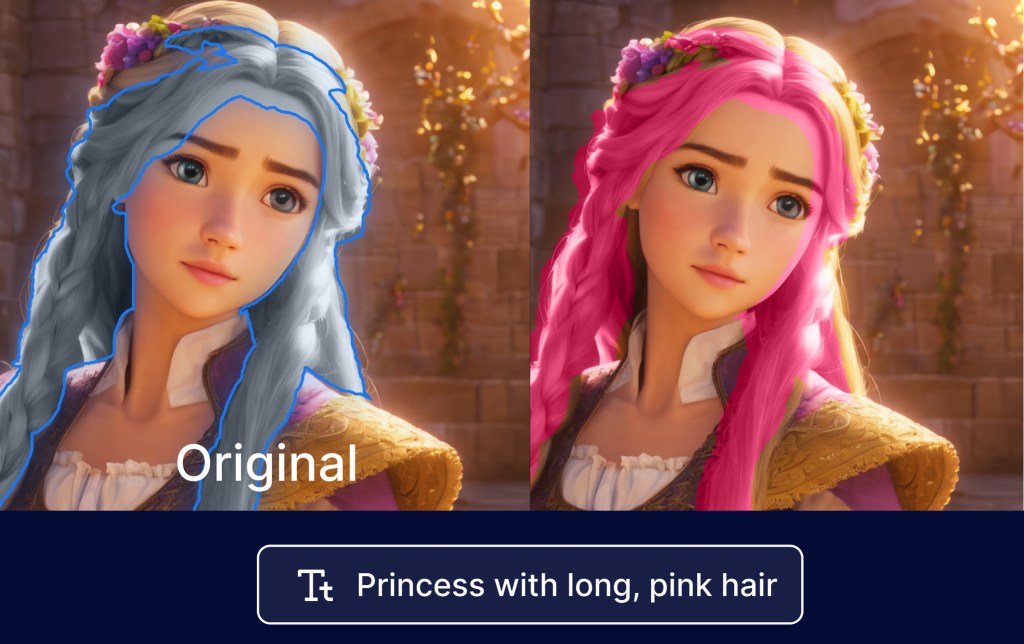
Use Magic Edit to make precise changes to any image without having to start over. With Magic Edit, you can adjust entire sections of your creations by applying new, detailed prompts – while keeping the rest of your image intact.
It’s fun, and highly flexible – whether you want to add, replace, or remove elements in an image – but you’ll need to learn how to prompt it correctly. Welcome to our step-by-step guide!
- What is Magic Edit? 🎨
- Step 1: Choose a photo to edit 📸
- Step 2: Draw a mask 🎭
- Use Case: Insert objects👇
- Use Case: Replace an object 🔁
- Use Case: Remove an object 🗑️
- Tips and Tricks for Best Results 💡
What is Magic Edit? 🎨
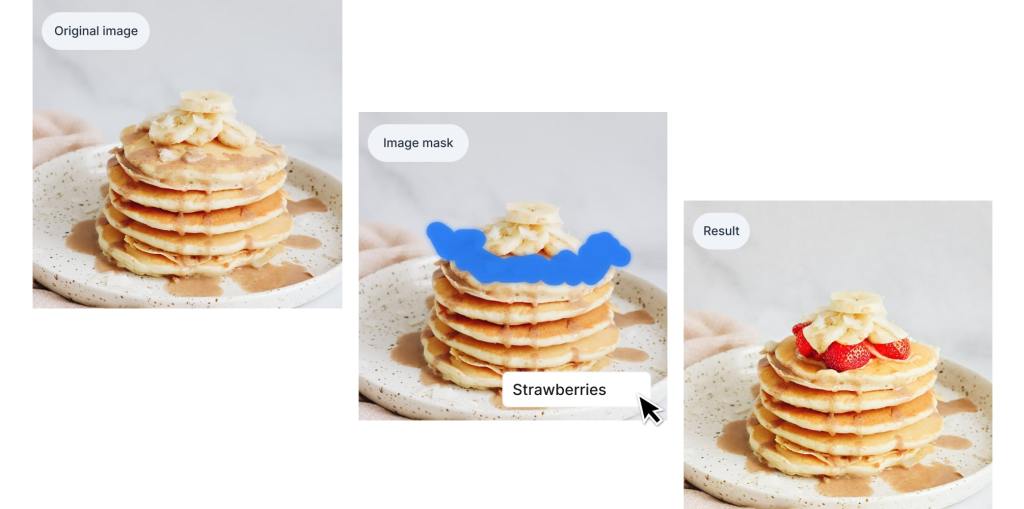
Magic Edit uses inpainting technology to that “paints over” sections of an image with a brand new image, according to your prompt. Our inpainting technology blends over the borders of your new image with the rest of the image, so that styles and subjects are retained. Whether you want to add strawberries to a pancake stack, swap a laptop for flowers, or remove distractions from a photo, Magic Edit is the right tool for you.
Step 1: Choose a photo to edit 📸
Start by picking a photo or creation you want to adjust. You have two options:
Find the image you want to tweak in My Creations OR My Uploads and click Magic Edit. When viewing My Creations, you can find the Magic Edit button below the “Download” button.

Step 2: Draw a mask 🎭
Once you’ve selected your image, it’s time to tell Magic Edit which part to change. The mask you draw determines where the new prompt will be applied.
Here’s how to create a mask:
Auto-Segment your image if you prefer not to draw the mask manually. This feature automatically breaks your image into logical sections. Simply click on the sections you want to edit, and they’ll turn blue.
Manually draw the mask using either the box tool or pencil tool. As you draw, the selected area will turn blue to show what will be regenerated. If you make a mistake, click the Reset button at the top left to start over.
Gencraft Tip: If your Magic Edit generations aren’t coming out the way you want them, try enlarging your mask, so that it covers more area around the section that you want to change. When in doubt, be liberal with how large you draw your mask.

Use Case: Insert objects👇
We have an image of a delicious stack of pancakes with bananas on top. But what if we want to add some strawberries to complete the look?
- Start Magic Editing your image of delicious pancakes.
- Draw the mask over the top of the stack (where the new strawberries will appear).
- Enter a detailed Magic Edit prompt: “A ring of strawberries on top of a stack of panckes, with bananas on top.”
- Gencraft Tip: The more detailed your Magic Edit prompt is, the better. Instead of simply writing “strawberries,” it’s better here to write “a ring of strawberries on top of a stack of panckes, with bananas on top.”
- Magic Edit will blend the strawberries seamlessly into the image!
Result: with just a few steps, you now have a picture-perfect stack of pancakes topped with bananas and strawberries! Hover over the image and drag the comparison bar to see the difference between the original and edited version.
Use Case: Replace an object 🔁
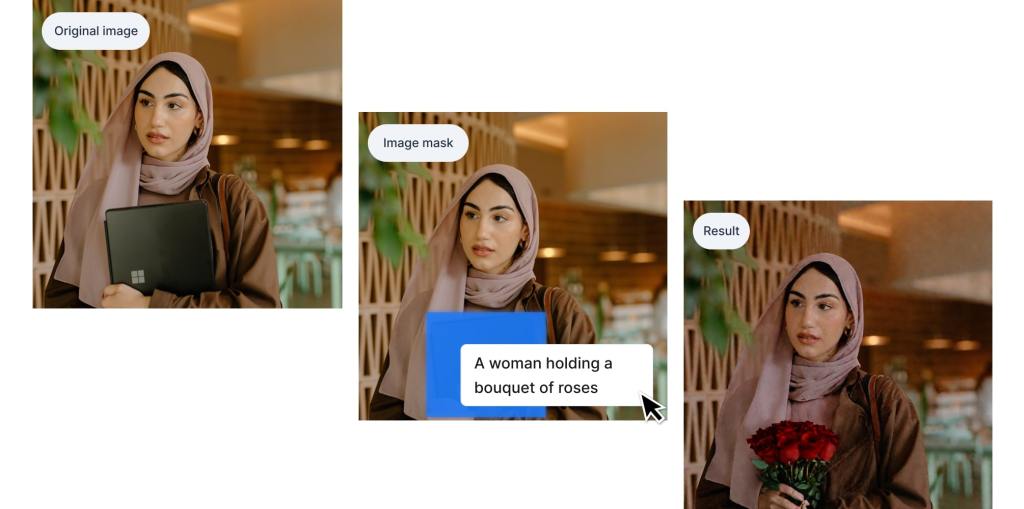
In this example, let’s swap a laptop with a bouquet of roses for a more romantic vibe.
Magic Edit replaces the laptop perfectly, keeping the rest of the image untouched.
- Magic Edit your image of a woman holding a laptop.
- Draw the mask using the Box Tool over the laptop in her hand.
- Enter your new prompt: “A woman holding a bouquet of roses.”
Use Case: Remove an object 🗑️
To help you get the best results, here are two recommended approaches for removing elements or distractions from your images:
To help you get the best results, here are two recommended approaches for removing elements or distractions from your images:
Approach 1: Small Object Removal
For smaller objects in your image, you can quickly remove them without detailed prompting.
- Select your image and choose Magic Edit.
- Mask the area where the small object is located (keep the mask relatively small).
- In the prompt box, type simple commands like “remove,” “erase,” or “delete.”
Magic Edit will handle the rest, blending the background naturally and seamlessly filling in the space where the object was.
Approach 2: Large Object Removal
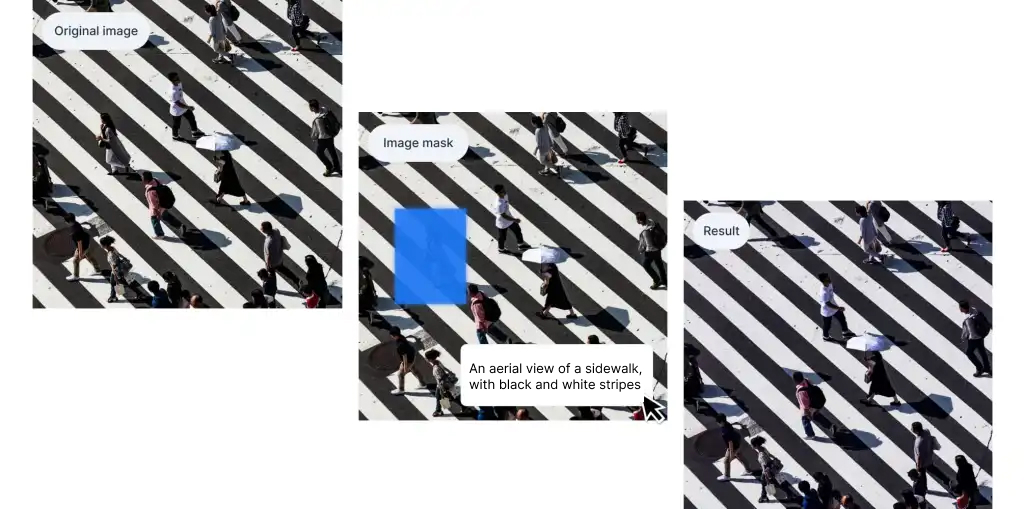
For larger elements, providing a bit more context will ensure a smooth and accurate result.
- Select your image and choose Magic Edit.
- Mask the area with the large object you want to remove.
- In the prompt box, describe what you’d like to see in place of the object, such as, “An aerial view of a sidewalk, with black and white stripes.”
This extra description helps Magic Edit understand the background details you’d like to see, ensuring the large object is removed seamlessly while maintaining the integrity of your image.
Once your edit is complete, you can:
- Compare your changes by dragging the vertical bar over the image to see the before-and-after.
- Download your edited image or tweak it further with another Magic Edit!
Tips and Tricks for Best Results 💡
- Keep your prompts consistent with the original prompt, and as detailed as possible. Specific instructions that are related to the original prompt like “Strawberries on a stack of pancakes with bananas on top” yield better results.
- Combine masks with prompts. If you want multiple changes, you can mask several areas at once and describe each in your prompt.
- Use larger masks to maximize your chances of blending elements smoothly.
- Use Auto-Segment for precision. This feature is great for photos with complex elements where manual masking might take too long.
Explore limitless creativity with Magic Edit! Magic Edit opens the door to endless creative possibilities, whether you’re polishing up an old creation or bringing a new idea to life. Don’t hesitate to experiment and push the boundaries of what’s possible with your art!
Need help? Check out our other tutorials or contact us anytime at support@gencraft.com. We’re here to support your creative journey!
By the way – join our Discord to share your art and meet other creators 🥳https://discord.com/invite/gencraft
 Welcome to Gencraft Tutorials